tl;dr If you need to keep Azure logs for years to satisfy compliance, you’ll probably end up using storage accounts with immutable storage and lifecycle management. Sounds straightforward. It isn’t. Log Analytics Workspace (LAW) data export can’t handle half the tables you care about, diagnostic settings dump logs as append blobs that lifecycle management can’t tier, and the official workaround is “write a script to convert them.” If your storage accounts are private, even that becomes a project.
I created this article, but it has been reviewed and refined with help from AI tools: Claude and Grammarly.
Why Storage Accounts for Log Retention
If you work in an organisation with compliance obligations - financial services, healthcare, government, or frankly any enterprise that’s been through an audit recently - you’ll know the drill. Logs need to be retained for a defined period, they need to be tamper-proof, and ideally they shouldn’t cost you a fortune.
Azure storage accounts tick all three boxes, at least on paper:
- Immutable (WORM) storage: Write Once, Read Many. Once your logs are written, nobody can modify or delete them until the retention period expires. (One catch: you’ll need the policy’s allow protected append writes option enabled, or the hourly appends from diagnostic settings get blocked along with everything else.) This is the gold standard for compliance - auditors love it.
- Archive tier pricing: Keeping logs in a Log Analytics Workspace (LAW) long-term is expensive. LAW does offer long-term retention (up to 12 years, accessible via search jobs and restore), which is cheaper than interactive retention - but it still doesn’t provide true WORM immutability, and the archive tier on a storage account is dramatically cheaper again.
- Lifecycle management: You can configure rules to automatically transition blobs through storage tiers. Keep them HOT for 180 days while they might still be operationally useful, move them to cool after that, archive after a year, and delete after six years. Set it and forget it.
Combine these features and you’ve got a compelling story: logs land in a storage account, immutability prevents anyone from tampering with them, lifecycle management progressively moves them to cheaper tiers as they age, and eventually they’re automatically deleted when the retention window closes.
On paper, this is exactly what you want. The problems start when you try to actually set it up.
The Typical Workflow
The mental model is simple enough. Most teams want two things from their logs:
- Short-term operational access: Logs in a Log Analytics Workspace where you can query them with KQL, build dashboards, set up alerts. You probably want 90 to 180 days of this.
- Long-term compliance retention: Logs sitting in a storage account, immutable, tiered down to archive, kept for however many years your compliance framework demands.
The obvious approach is to configure diagnostic settings on your Azure resources to send logs to a LAW for the short-term stuff, and separately ensure they end up in a storage account for the long haul. Two destinations, two purposes. In practice, each path has its own set of limitations.
The Obvious Path: LAW Data Export
Your first thought might be: “I already have all my logs landing in a LAW. Why not just export them from there to a storage account?”
Azure has a feature for exactly this: LAW data export. It lets you configure continuous export of data from your workspace to a storage account. You set it up, point it at your storage account, and your logs flow automatically.
The limitations, however, are significant. Custom log tables created via the legacy HTTP Data Collector API can’t be exported (though newer tables created via data collection rules can). Worse, there’s a substantial list of unsupported tables - including AzureDiagnostics, one of the most commonly used tables in any Azure environment. A huge number of resource types write their logs to AzureDiagnostics. If you can’t export that table, you can’t export a large chunk of the data you need to retain.
There’s another angle here too. Even if data export supported all the tables you need, the approach assumes you’re ingesting everything into a LAW first. But some log types - VNet flow logs, SQL audit logs - are so voluminous that ingesting them into a LAW just to export them again makes no economic sense. You might want those logs retained in a storage account for compliance, but you’d never pay LAW ingestion costs for data you don’t plan to query day-to-day. For these, you need a direct-to-storage path regardless.
So the feature that looks purpose-built for this workflow can’t handle many of the most common log tables, and even when it does work, it only covers the subset of logs you were already paying to ingest.
The Fallback: Dual Diagnostic Settings
With LAW data export off the table (or at least off the AzureDiagnostics table), the fallback strategy is straightforward: configure each resource with two diagnostic settings - or in some cases, a single diagnostic setting that sends directly to storage for logs you don’t need in the LAW at all.
- One sends logs to the LAW for short-term operational use.
- One sends logs directly to a storage account for long-term retention.
This works reliably. Logs land in both places. You get your KQL queries in the LAW and your compliance archive in the storage account. But it’s worth looking at how those logs actually land in the storage account.
The Append Blob Problem
When diagnostic settings write logs to a storage account, they create them as append blobs. This makes intuitive sense - logs are append-only by nature. You’re always adding new entries, never modifying existing ones. Append blobs are optimised for exactly this pattern.
The problem is that lifecycle management treats append blobs as second-class citizens.
Two things you’ll run into:
- Append blobs have no access tier. If you look at them in the Azure portal, the access tier shows as “N/A”. They’re inherently HOT - they’re being actively written to, so Azure keeps them in the HOT tier by default. Fair enough while they’re being written to, but they stay that way forever.
- Lifecycle management tiering doesn’t work on append blobs. That carefully crafted lifecycle policy you set up - HOT for 180 days, cool for a year, archive until six years, then delete? The tiering part only works on block blobs. Append blobs can’t be moved to cool, cold, or archive. They’re stuck in HOT forever. The one thing lifecycle management can do with append blobs is delete them - so at least your six-year auto-delete rule will still fire, provided any immutability policy’s retention has expired by then (lifecycle deletes are blocked while a blob is under an active WORM policy). But until that day comes, you’re paying HOT-tier prices.
So now you’re paying HOT-tier storage prices for six years’ worth of compliance logs that nobody is ever going to look at again. You’ll get the automatic cleanup at the end, but the entire economic argument for the tiered lifecycle - the thing that made storage accounts so attractive in the first place - doesn’t apply to your logs.
One practical workaround is to set the storage account’s default access tier to Cool. Append blobs inherit the account-level default tier, so while they’ll still show “N/A” in the portal and you still can’t tier them individually via lifecycle management, they’ll at least be billed at Cool rates rather than HOT. It’s not the full HOT to cool to archive progression you planned for, but it takes the worst of the sting out of the cost. The catch is that this applies to the entire storage account, so if you have other workloads on the same account that genuinely need HOT access, you’ll want a dedicated account for your logs.
Converting Append Blobs to Block Blobs
There’s no native way to convert append blobs to block blobs. The official documentation recommends you perform a server-side copy of each append blob to a new block blob, then delete the original. They provide examples in PowerShell, Azure CLI, and AzCopy - but all three amount to the same thing: scripting it yourself.
The conversion itself isn’t as simple as “copy everything that’s old.” Diagnostic settings typically roll log files over every hour (though this varies by resource type), so your conversion process needs to avoid any append blobs that are still being actively written to. You might think you can just wait until the next log file appears, indicating rollover has occurred. But I’ve discovered that due to service health issues, log messages can be buffered and arrive into a log file days after they were due. A file you thought had finished rolling over hours ago can suddenly get new writes. In practice, you end up picking an arbitrary safety window - three days, a week - and ignoring any append blobs newer than that.
Running Conversions Against Private Storage
For a small, non-sensitive storage account, a scheduled Azure Automation runbook could handle this. But if your storage accounts are private - sitting behind a private endpoint, accessible only within a private VNet, with no public network access - you need compute inside the VNet.
Your options are:
- A Hybrid Runbook Worker - essentially a VM in your VNet running the Azure Automation agent. You’re maintaining a virtual machine to convert blob types.
- A Container App Job integrated into the VNet - less overhead than a VM, but still a non-trivial piece of infrastructure to deploy, secure, and monitor.
Either way, what should be a configuration toggle has become an infrastructure project. You’re deploying compute, writing scripts, handling errors and retries, monitoring the job - and then replicating it across every region and environment where you’re retaining logs.
What About Event Hubs?
Event Hub streaming is another path that avoids the append blob issue entirely. Instead of sending logs directly to a storage account via diagnostic settings, you can stream them to an Event Hub and use Event Hubs Capture to write them to Blob Storage as block blobs automatically. Because they land as block blobs, lifecycle management tiering works from day one.
The trade-offs are different though. You need an Event Hub namespace with throughput units (which aren’t cheap), the captured data lands in Avro format rather than JSON (so querying it later is less straightforward), and you’re standing up and managing a whole additional piece of infrastructure. For architectures that already use Event Hubs for other purposes, it might make sense to fold log streaming in. For most teams that just want to tick a compliance box, it’s a lot of machinery.
If you’re already going down the Event Hub path and need long-term retention with queryability, Azure Data Explorer (ADX) is worth a look. ADX can ingest directly from Event Hubs, and its hot/cold cache model means data beyond your hot window drops down to blob storage pricing while remaining queryable. But ADX requires a running cluster (there’s a base compute cost even when idle), and it doesn’t provide WORM immutability at the ADX layer. If your compliance framework demands tamper-proof storage, you’re still going to need a storage account with immutability policies.
What I Actually Did
After working through these options, here’s the approach I landed on.
Set the storage account default tier to Cool. This is the quick win. Since append blobs inherit the account-level default tier, your logs are at least billed at Cool rates from the moment they land rather than sitting in HOT for years. Use a dedicated storage account for logs so this doesn’t affect other workloads.
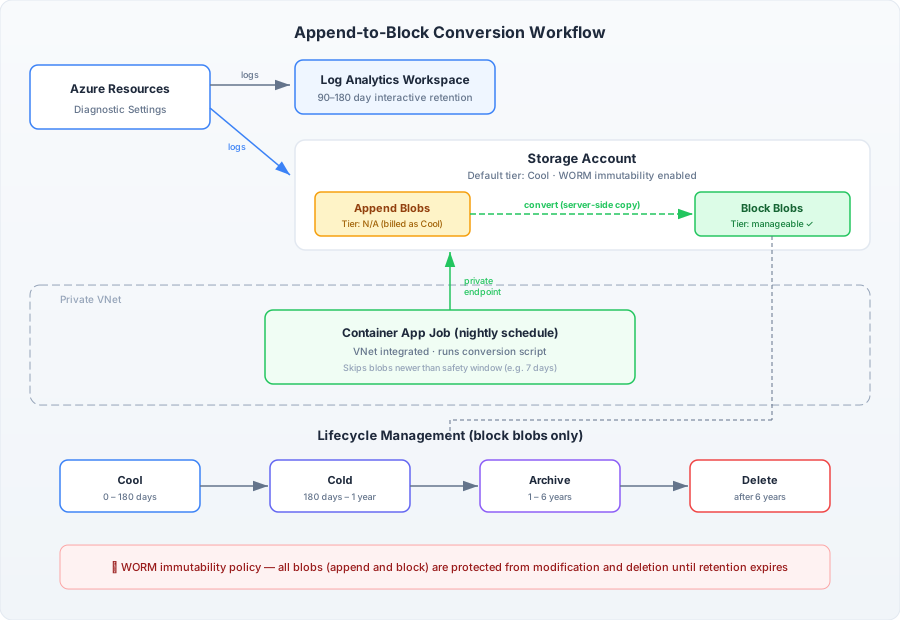
Deploy a nightly Container App Job with VNet integration. The job runs a script that enumerates append blobs in the storage account, copies each one as a block blob (server-side copy via AzCopy), and deletes the original append blob. Because the storage account is private, the Container App Job needs to be integrated into the same VNet and access the storage account via its private endpoint.
Use a safety window to avoid active files. The script skips any append blob with a last-modified date newer than seven days. This accounts for the delayed log delivery issue I mentioned earlier - where log entries can arrive into a rolled-over file days after the fact. Seven days is conservative, but it’s better than accidentally converting a blob that’s still being written to.
Let lifecycle management handle the rest. Once the blobs are block blobs, lifecycle management works as intended. The lifecycle policy tiers them from Cool to Cold after 180 days, Cold to Archive after a year, and deletes them after six years. The WORM immutability policy protects the converted block blobs. The append blobs waiting to be converted can’t sit under the same policy - if they did, the conversion job wouldn’t be able to delete them after copying. In practice that means landing the raw append blobs in a container without an immutability policy, and applying WORM where the block blobs live.
The diagram below shows how it all fits together:
Wrapping Up
The individual Azure features all work as documented. The gap is that they don’t compose into a cohesive compliance workflow. There’s no built-in path from “diagnostic settings write append blobs” to “lifecycle management tiers them down to archive.” Until that changes - maybe one day lifecycle management will support tiering append blobs natively, or offer an automated conversion action - you’ll need the conversion infrastructure described above.
Thanks for reading.