
tl;dr This article demonstrates how to deploy an Azure Container Instance (ACI) container group while enabling HTTPS via Caddy, as ACI doesn’t natively support SSL.

Introduction

🤖 I created this article, but it has been reviewed and refined with help from AI tools: GPT-4o and Grammarly.

Azure Container Instances (ACI) offer a quick and straightforward way to run containers in the cloud without managing the underlying infrastructure. However, one limitation is that ACI does not natively support HTTPS. To overcome this limitation, we can use Caddy, an open-source web server that automatically provides HTTPS. We will deploy an ACI container group containing both a simple hello world image and Caddy to provide HTTPS for the application. The hello world image is used for simplicity, but the same principle can be applied with any other container image you want to use instead.

Bicep Template

To deploy our solution, we will use Bicep, a domain-specific language (DSL) for deploying Azure resources declaratively. Below is the Bicep code necessary to provision a container group with two containers: Caddy and the ACI Hello World app. The Caddy container will handle HTTPS traffic, forwarding requests to the Hello World container. I also have a GitHub repository where this and other example Bicep templates can be found.

main.bicep

The main.bicep file defines the parameters for the deployment and includes two modules: one for creating a storage account and file share for the Caddy container and another for deploying the ACI container group.

 1
 2
 3
 4
 5
 6
 7
 8
 9
10
11
12
13
14
15
16
17
18
19
20
21
22
23
24
25
26
27
28
29
@description('The location to deploy the resources to.')
param location string = 'australiaeast'

@description('The name of the container group to create.')
param containerGroupName string

@description('The name of the storage account to create.')
param storageAccountName string

@description('Create a storage account and file share to persist data for the Caddy container.')
module storageAccount './storage-account.bicep' = {
  name: toLower('deploy-storage-account-module-${storageAccountName}')
  params: {
    location: location
    storageAccountName: storageAccountName
    containerGroupName: containerGroupName
  }
}

@description('Create an ACI container group to run the Hello World and Caddy containers.')
module aci './aci.bicep' = {
  name: toLower('deploy-aci-module-${containerGroupName}')
  params: {
    location: location
    storageAccountName: storageAccountName
    containerGroupName: containerGroupName
    caddyDataFileShareName: storageAccount.outputs.caddyDataFileShareName
  }
}

storage-account.bicep

The storage-account.bicep file creates a storage account and a file share which is used by the Caddy container to persist data.

 1
 2
 3
 4
 5
 6
 7
 8
 9
10
11
12
13
14
15
16
17
18
19
20
21
22
23
24
25
26
27
28
29
30
31
32
33
34
35
36
37
38
39
40
41
42
43
44
45
46
47
48
49
50
51
52
53
54
55
56
57
58
59
60
61
62
63
64
65
66
67
68
param location string
param containerGroupName string
param storageAccountName string

resource storageAccount 'Microsoft.Storage/storageAccounts@2023-05-01' = {
  name: storageAccountName
  location: location
  sku: {
    name: 'Standard_LRS'
  }
  kind: 'StorageV2'
  properties: {
    dnsEndpointType: 'Standard'
    allowedCopyScope: 'AAD'
    allowCrossTenantReplication: false
    isSftpEnabled: false
    isNfsV3Enabled: false
    minimumTlsVersion: 'TLS1_2'
    allowBlobPublicAccess: false
    allowSharedKeyAccess: true
    largeFileSharesState: 'Enabled'
    isHnsEnabled: true
    supportsHttpsTrafficOnly: true
    accessTier: 'Hot'
    encryption: {
      requireInfrastructureEncryption: true
      services: {
        file: {
          enabled: true
          keyType: 'Account'
        }
      }
      keySource: 'Microsoft.Storage'
    }
    networkAcls: {
      bypass: 'AzureServices'
      defaultAction: 'Allow'
    }
  }
}

resource fileServices 'Microsoft.Storage/storageAccounts/fileServices@2023-05-01' = {
  parent: storageAccount
  name: 'default'
  properties: {
    protocolSettings: {
      smb: {
        versions: 'SMB3.0'
      }
    }
    shareDeleteRetentionPolicy: {
      enabled: false
      allowPermanentDelete: true
    }
  }
}

resource caddyDataFileShare 'Microsoft.Storage/storageAccounts/fileServices/shares@2023-05-01' = {
  parent: fileServices
  name: '${containerGroupName}-caddydata'
  properties: {
    shareQuota: 1
    accessTier: 'TransactionOptimized'
    enabledProtocols: 'SMB'
  }
}

output caddyDataFileShareName string = caddyDataFileShare.name

aci.bicep

The aci.bicep file defines the container group, specifying the properties for both the Caddy container and the Hello World container. The key part is the command given to the Caddy container - it tells Caddy which public url to obtain a certificate for and to forward incoming requests to the Hello World container listening on localhost:3001. The dnsNameLabel in the ipAddress section is what gives the container group that public url in the first place:

  1
  2
  3
  4
  5
  6
  7
  8
  9
 10
 11
 12
 13
 14
 15
 16
 17
 18
 19
 20
 21
 22
 23
 24
 25
 26
 27
 28
 29
 30
 31
 32
 33
 34
 35
 36
 37
 38
 39
 40
 41
 42
 43
 44
 45
 46
 47
 48
 49
 50
 51
 52
 53
 54
 55
 56
 57
 58
 59
 60
 61
 62
 63
 64
 65
 66
 67
 68
 69
 70
 71
 72
 73
 74
 75
 76
 77
 78
 79
 80
 81
 82
 83
 84
 85
 86
 87
 88
 89
 90
 91
 92
 93
 94
 95
 96
 97
 98
 99
100
101
102
103
104
105
106
107
108
109
110
param location string
param containerGroupName string
param storageAccountName string
param caddyDataFileShareName string

var publicUrl = toLower('${containerGroupName}.${location}.azurecontainer.io')

resource storageAccount 'Microsoft.Storage/storageAccounts@2023-05-01' existing = {
  name: storageAccountName
}

resource containerGroup 'Microsoft.ContainerInstance/containerGroups@2024-05-01-preview' = {
  name: containerGroupName
  location: location
  properties: {
    sku: 'Standard'
    containers: [
      {
        name: '${containerGroupName}-caddy'
        properties: {
          // https://hub.docker.com/_/caddy
          image: 'docker.io/caddy:latest'
          command: [
            'caddy'
            'reverse-proxy'
            '--from'
            '${publicUrl}'
            '--to'
            'localhost:3001'
          ]
          resources: {
            requests: {
              cpu: 1
              memoryInGB: 1
            }
          }
          ports: [
            {
              protocol: 'TCP'
              port: 443
            }
            {
              protocol: 'TCP'
              port: 80
            }
          ]
          volumeMounts: [
            {
              name: caddyDataFileShareName
              mountPath: '/data'
              readOnly: false
            }
          ]
        }
      }
      {
        name: '${containerGroupName}-hello-world'
        properties: {
          // https://github.com/Azure-Samples/aci-helloworld
          image: 'mcr.microsoft.com/azuredocs/aci-helloworld:latest'
          resources: {
            requests: {
              cpu: 1
              memoryInGB: 1
            }
          }
          environmentVariables: [
            {
              name: 'PORT'
              value: '3001'
            }
          ]
          ports: [
            {
              port: 3001
              protocol: 'TCP'
            }
          ]
        }
      }
    ]
    osType: 'Linux'
    restartPolicy: 'Never'
    ipAddress: {
      type: 'Public'
      dnsNameLabel: containerGroupName
      ports: [
        {
          protocol: 'TCP'
          port: 443
        }
        {
          protocol: 'TCP'
          port: 80
        }
      ]
    }
    volumes: [
      {
        name: caddyDataFileShareName
        azureFile: {
          shareName: caddyDataFileShareName
          storageAccountName: storageAccount.name
          storageAccountKey: storageAccount.listKeys().keys[0].value
          readOnly: false
        }
      }
    ]
  }
}

Deployment

To deploy the Bicep template, you will need the Azure CLI installed. Follow these steps to deploy the solution:

  1. Create an .env file.

  2. Populate the .env file with the following values:

    1
    2
    3
    4
    5
    6
    
    TENANT_ID=
    SUBSCRIPTION_ID=
    RESOURCE_GROUP=
    LOCATION=
    CONTAINER_GROUP_NAME=
    STORAGE_ACCOUNT_NAME=
    
  3. Save and run the PowerShell script to deploy the resources:

     1
     2
     3
     4
     5
     6
     7
     8
     9
    10
    11
    12
    13
    14
    15
    16
    17
    18
    19
    20
    21
    22
    23
    24
    25
    26
    27
    28
    29
    30
    31
    32
    33
    
    # Load .env file and set environment variables
    
    $envFilePath = ".env"
    if (Test-Path $envFilePath) {
        Get-Content $envFilePath | ForEach-Object {
            if ($_ -match "^\s*([^#][^=]+)=(.*)\s*$") {
                $name = $matches[1]
                $value = $matches[2]
                [System.Environment]::SetEnvironmentVariable($name, $value)
                Write-Host "env variable: $name=$value"
            }
        }
    }
    
    $tenantId = [System.Environment]::GetEnvironmentVariable("TENANT_ID")
    $subscriptionId = [System.Environment]::GetEnvironmentVariable("SUBSCRIPTION_ID")
    $resourceGroup = [System.Environment]::GetEnvironmentVariable("RESOURCE_GROUP")
    $location = [System.Environment]::GetEnvironmentVariable("LOCATION")
    $containerGroupName = [System.Environment]::GetEnvironmentVariable("CONTAINER_GROUP_NAME")
    $storageAccountName = [System.Environment]::GetEnvironmentVariable("STORAGE_ACCOUNT_NAME")
    
    az config set core.login_experience_v2=off # Disable the new login experience to avoid console prompts
    az login --tenant $tenantId
    
    az account set --subscription $subscriptionId
    az group create --name $resourceGroup --location $location
    
    az deployment group create `
        --name caddy-hello-world `
        --resource-group $resourceGroup `
        --template-file main.bicep `
        --parameters containerGroupName=$containerGroupName `
        storageAccountName=$storageAccountName
    

    Note: This script will use the values in the .env file to deploy the container group with both the Caddy and Hello World containers.

  4. Once deployed, if all has worked as expected, when you browse to your container group url you should see the following message. Note, the url will be in the following form: -

    https://<container-group-name>.<location>.azurecontainer.io
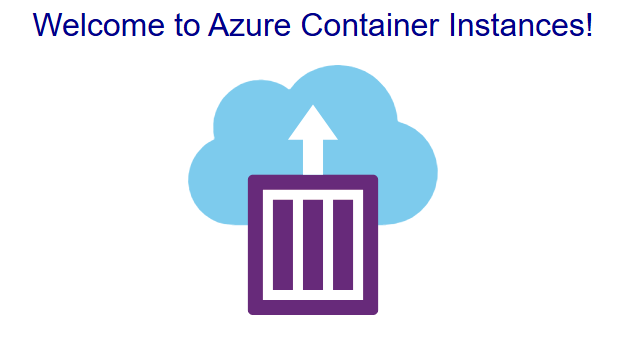
    Hello, World!

Conclusion

A Caddy container in the same container group is all it takes to work around ACI’s lack of native SSL support and provide HTTPS for your application. Feel free to leave a comment about your experience or any challenges you faced while deploying this solution.

Thanks for reading.